---
title: Function Overview
description: Get a clear snapshot of how each function behaves and performs.
---
[Skip to content](https://info.buildingtools.co/knowledge-base/function#main-content)
English - Australia
Show submenu for translations

Open main navigation
Close main navigation
- English - Australia
Show submenu for translations
- Contact us
Contact us
How can we help you?
- There are no suggestions because the search field is empty.
1. [Tools™ Knowledge Base](https://info.buildingtools.co/knowledge-base)
2. [Function Overview](https://info.buildingtools.co/knowledge-base/function-overview)
# Function Overview
## Get a clear snapshot of how each function behaves and performs.
1\. Navigate to [https://app.buildingtools.co/](https://app.buildingtools.co/)
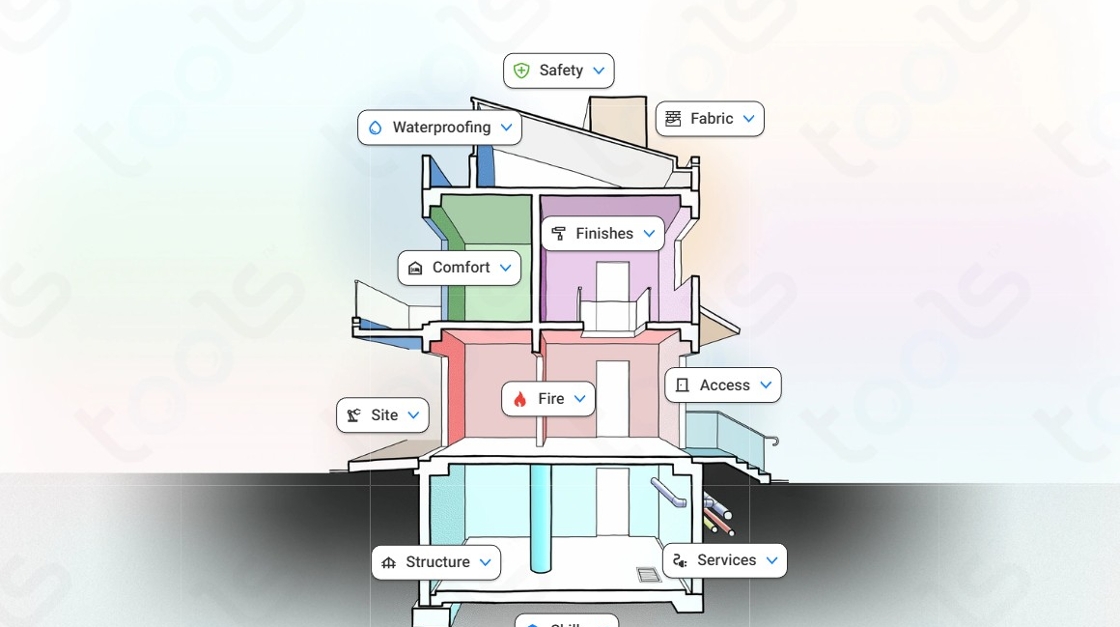
2\. Click on the side menu.

3\. Click 'Structure' to open a dropdown menu.

4\. Click Timber to open a dropdown menu.

5\. Click 'Framing Overview (Timber)'

6\. Click here.

7\. Click on this panel to reveal more information
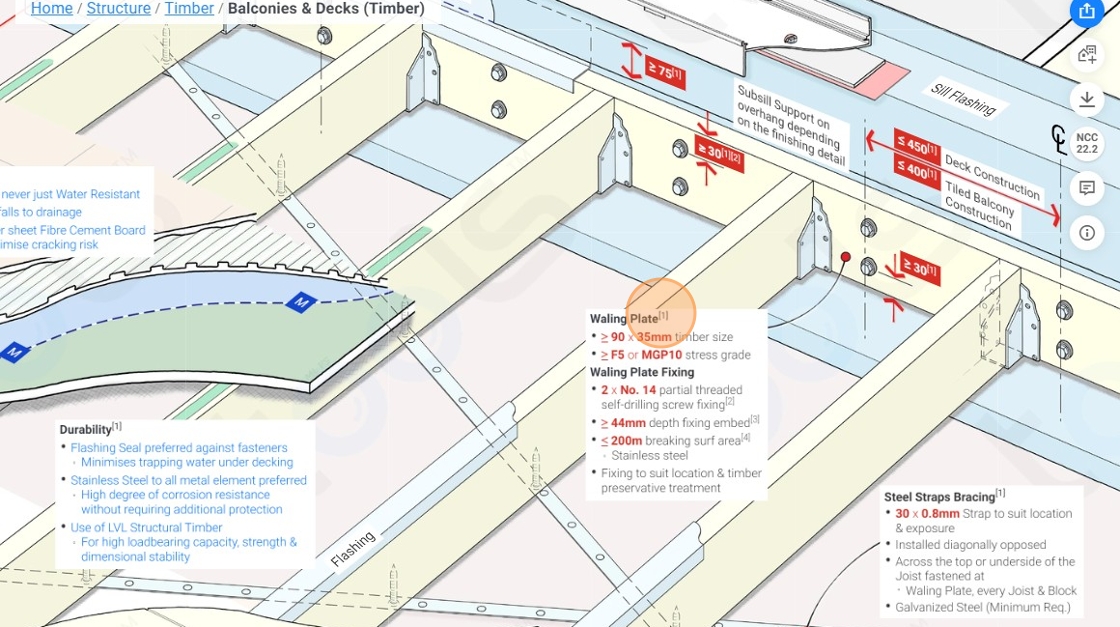
8\. Click 'Waling Plate & Fixing'
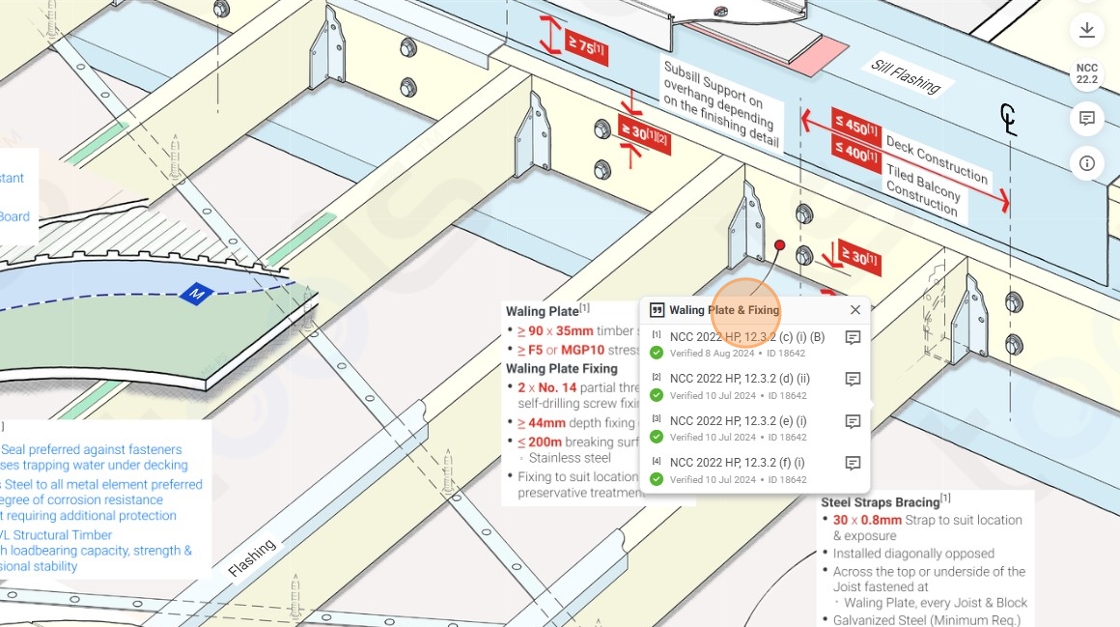
9\. Click here.

10\. Zoom into area of focus.

11\. Click on the share option.

12\. Click 'Copy link'

13\. In a new tab, simply paste the link you've copied [https://app.buildingtools.co/tools/structure-timber-balconies-decks-ncc2022.2-1.10?v=1764649267609&shareId=FmGcYD-1764649264396&zoom=2.95216374856541&menu\_id=8-3-0&x=602.0582925908989&y=290.3157687799565&standard=&action=click&type=0](https://app.buildingtools.co/tools/structure-timber-balconies-decks-ncc2022.2-1.10?v=1764649267609&shareId=FmGcYD-1764649264396&zoom=2.95216374856541&menu_id=8-3-0&x=602.0582925908989&y=290.3157687799565&standard=&action=click&type=0)
14\. The exact same screen still appears.

15\. And you will be able to navigate through the functions.

16\. Lets try another function 'Floor Framing (Timber)'

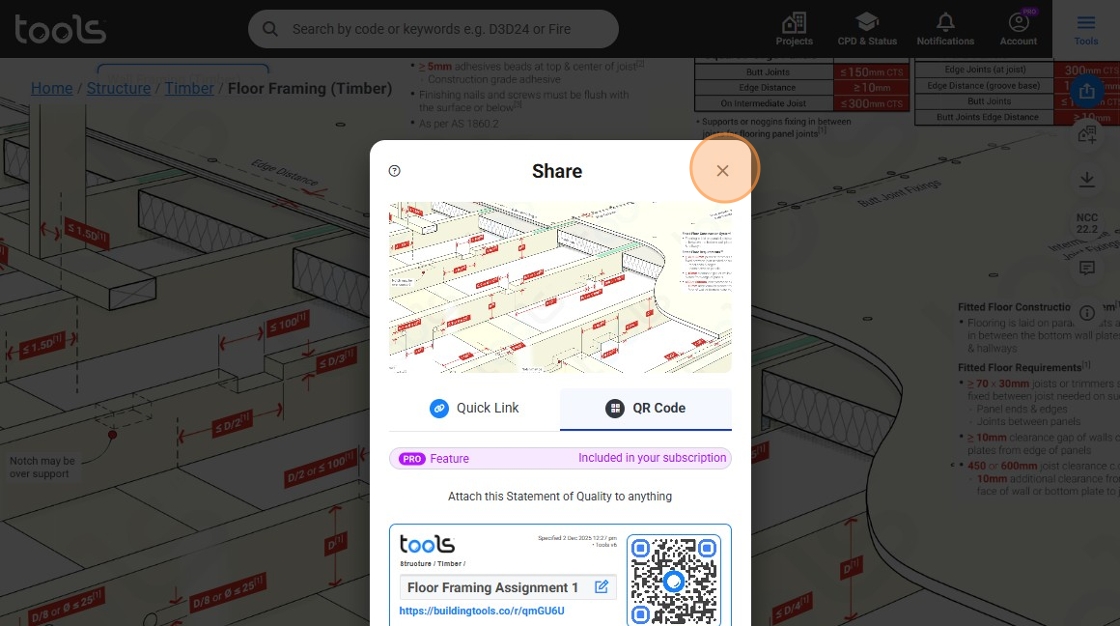
17\. Click on the share option.

18\. Click 'QR Code'

19\. Click 'Copy' to paste the QR in documents to print

20\. Click 'Link' to share the QR code with anyone

21\. Click 'Image' to download and save the image

22\. Click on the edit icon to edit the title.

23\. Click the 'Title' textbox.

24\. Type any desired name

25\. Click 'Update'

26\. Click here to close the share menu
27\. Click here to download a PDF.

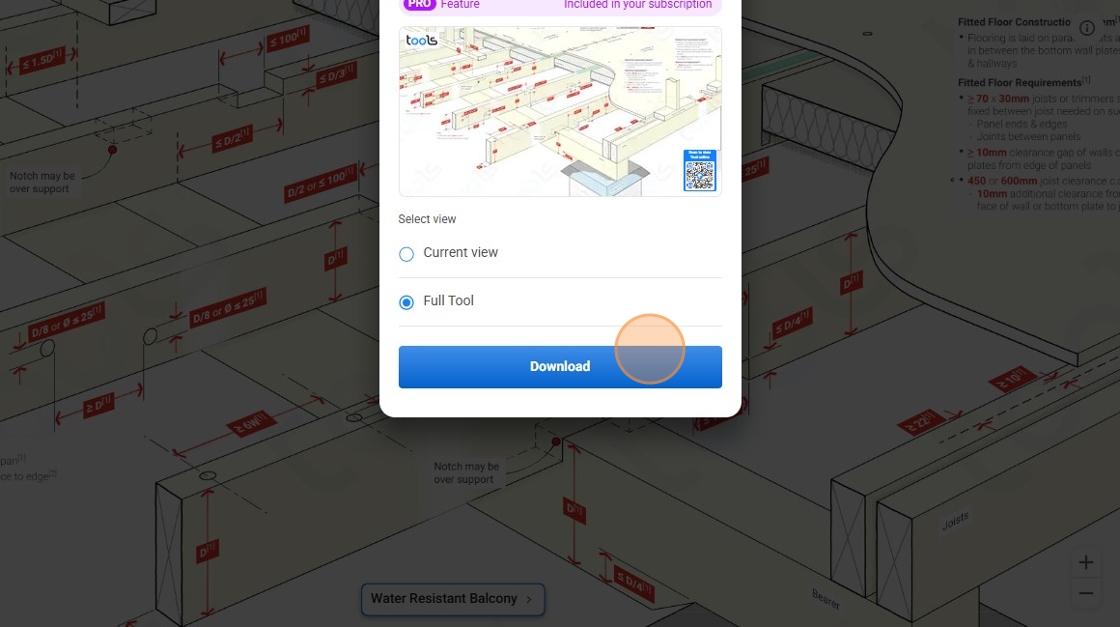
28\. Click 'Current view' to download only the current view on screen

29\. Click 'Full Tool' to download a complete view

30\. Click 'Download'
31\. Click 'NCC 22.2'
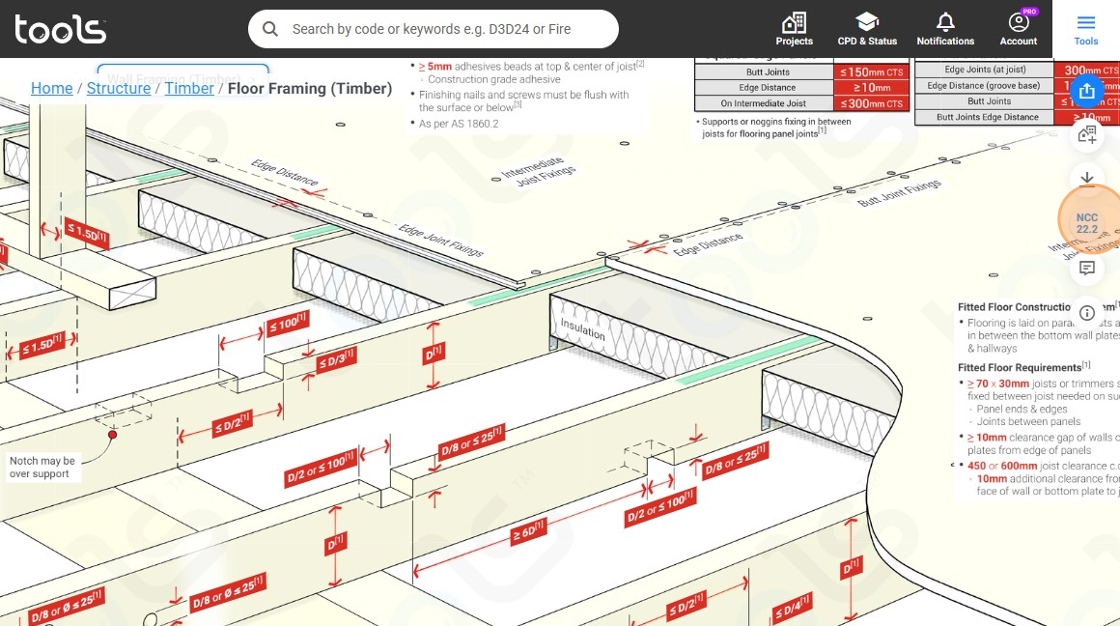
32\. Click 'NCC 2022' to switch versions when necessary.

33\. Click on the feedback icon.

34\. Click the category dropdown box.

35\. Click 'Technical & content feedback'

36\. Click on this panel.

37\. Click on the feedback text box.

38\. Click '\[1\]'

39\. Click the icon.

40\. Click the 'Enter your message' field.

41\. Click on the 'About this tool' icon

42\. Click '28 Aug 2025'

43\. Click on the feedback text box.

44\. Click here to close the panel

- [Whats New](https://info.buildingtools.co/knowledge-base/whats-new)
- [Function Overview](https://info.buildingtools.co/knowledge-base/function-overview)
- [Building Code Coverage](https://info.buildingtools.co/knowledge-base/building-code-coverage)
- [Code Citation](https://info.buildingtools.co/knowledge-base/code-citation)
- [Share Links, QRs, PDFs](https://info.buildingtools.co/knowledge-base/share-links-qrs-pdfs)
- [Get to know your tools](https://info.buildingtools.co/knowledge-base/get-to-know-your-tools)
- [Playlist](https://info.buildingtools.co/knowledge-base/playlist)
- [Free access](https://info.buildingtools.co/knowledge-base/free-access)
- [Inco tools](https://info.buildingtools.co/knowledge-base/inco-tools)
- [Treasure hunt](https://info.buildingtools.co/knowledge-base/treasure-hunt)
- [Submitting feedback](https://info.buildingtools.co/knowledge-base/submitting-feedback)
- [How to read tools](https://info.buildingtools.co/knowledge-base/how-to-read-tools)
- Home
- Products
- Pricing
- Blog
- Company
[](https://info.buildingtools.co/)
[mailto:email@email.com](mailto:email@email.com)
Copyright Tools™ 2025